Quick Start
This tutorial takes a few minutes and covers everything keycmd does: you store a credential in your OS keyring, name it in a configuration file, and run a command that can read it.
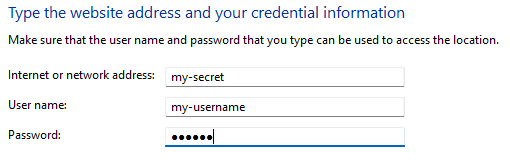
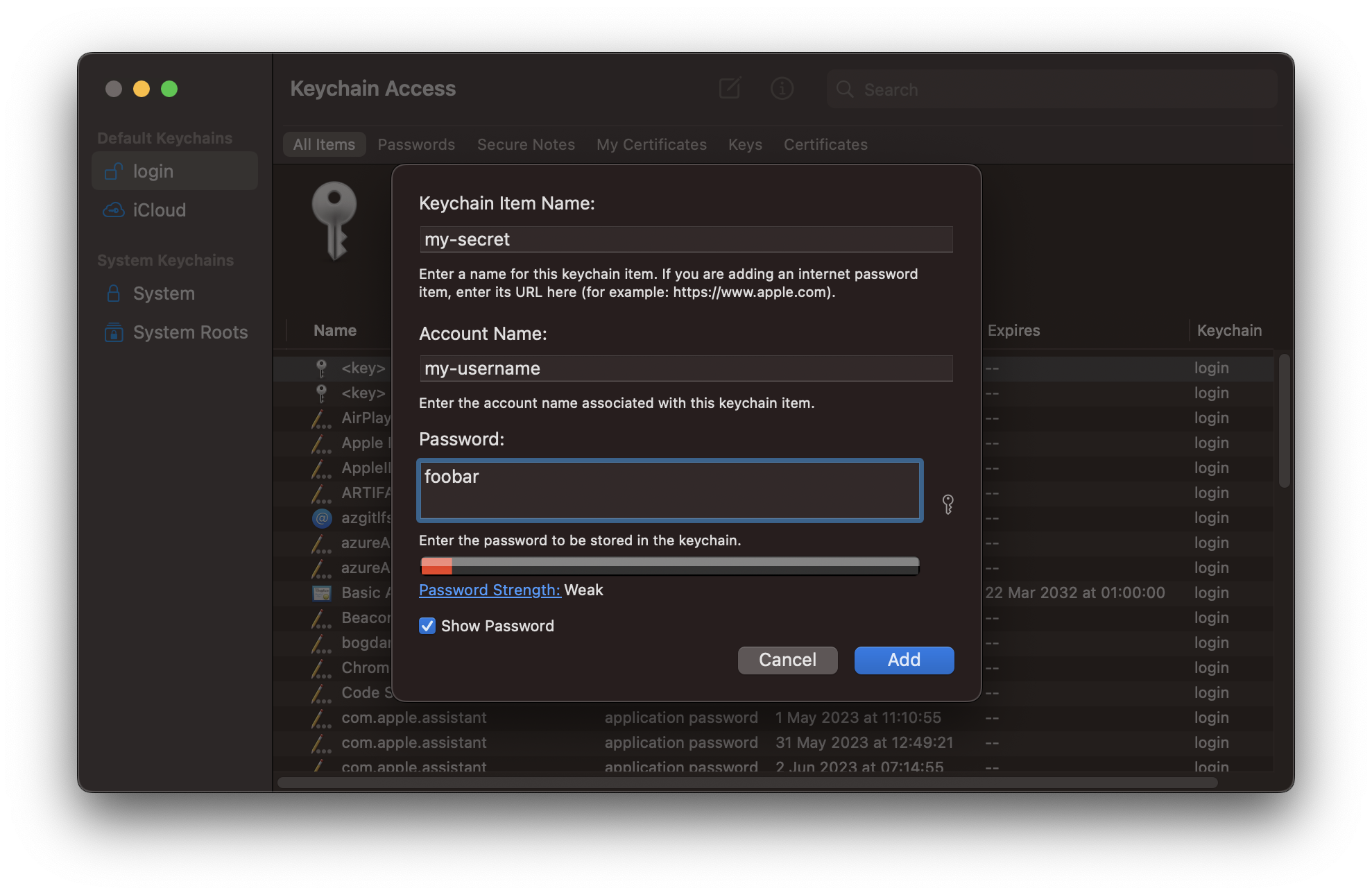
For the purpose of this example, use my-secret as the credential name and my-username as the... username. We'll use foobar as the password.
1. Store a credential in your keyring
How you add a credential depends on your platform.
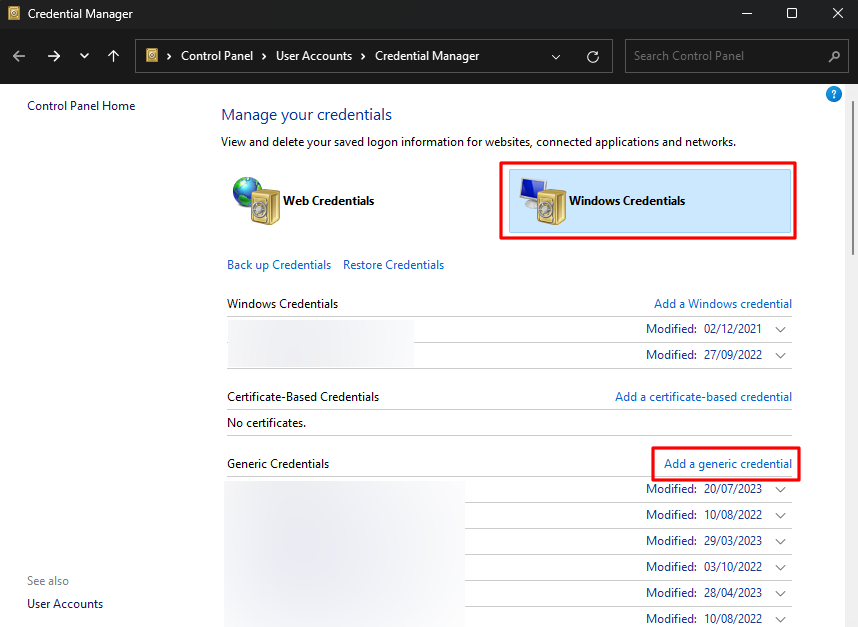
Click Start and type "Credential Manager" to find the app. Open the Windows Credentials tab, and click Add a generic credential.
Open Keychain Access (Cmd+Space, type keychain access), then press Cmd+N to add a new password item. Note that Account Name holds the username.
The easiest way to add a credential on Linux is through Python's keyring package. Adding a password through the GUI does not always let you set a username, which is a problem for keycmd's internal keyring.get_password() call:
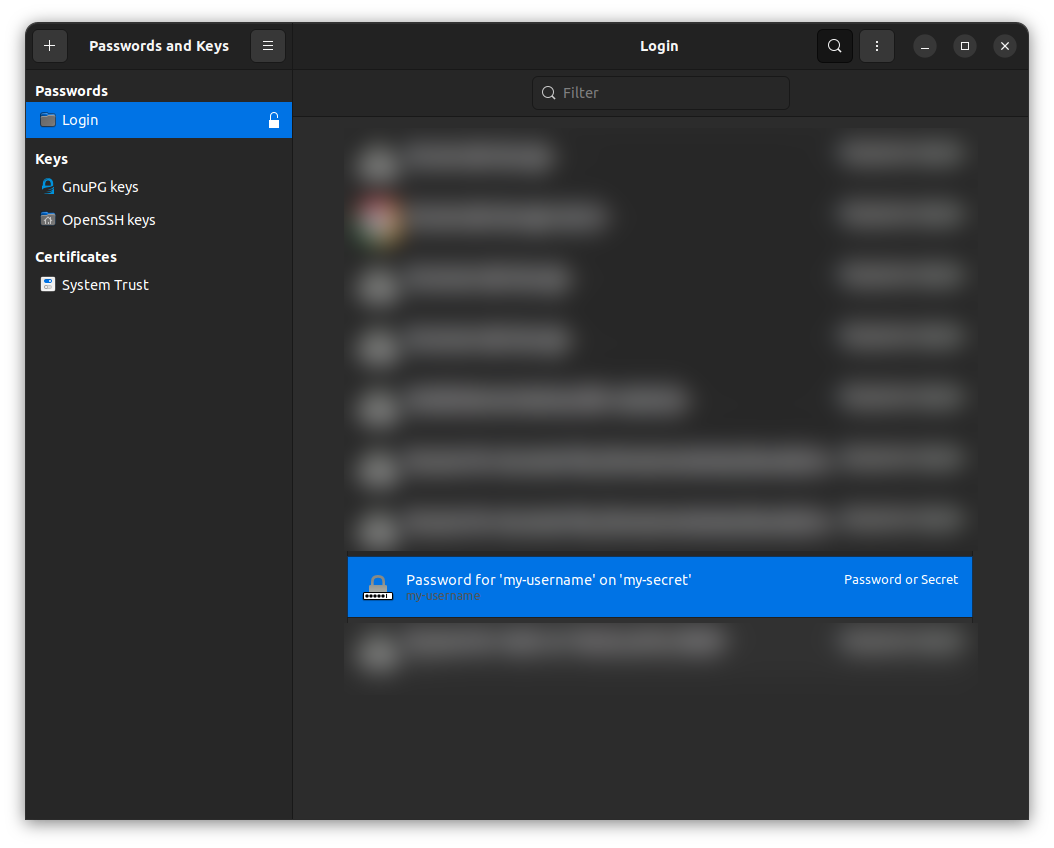
After that it shows up in your credential manager. On Ubuntu that's seahorse, which should now show the new password:
This approach generalizes to other distributions — and to other operating systems, for that matter.
2. Write a configuration file
Create a .keycmd file in your user home folder, with the following contents:
This says: look up the credential my-secret for user my-username, and expose the password it holds as the environment variable SECRET.
3. Run a command
Open a terminal and put keycmd in front of the command you want the secret to reach. That is all there is to it, and it is how you will use keycmd for real:
The tools you run read their credentials from the environment themselves, and keycmd is what puts them there.
To check your setup right now, print the secret instead. That is the one thing that does need quotes, since a variable written in your command line is expanded by your own shell — before keycmd has set it:
You should see the text foobar printed to your terminal.
You've successfully set up keycmd! 👏
What just happened
keycmd read your configuration, looked my-secret up in your OS keyring, put the password in the environment as SECRET, and handed that environment to your shell along with your command. When the command finished, the variable went with it: your own shell never had it.
Note the quotes in the bash and PowerShell examples. Quoting the whole command as one argument is what lets your command's shell expand $SECRET, rather than your own shell expanding it into nothing beforehand. (cmd is the exception: it leaves an undefined %SECRET% alone, so it survives the trip unquoted.) Commands that read the environment themselves — which is nearly all of them — need none of this. See Running commands for the details.
Where to go next
- Running commands — prefixing a command, quoting one, and subshells.
- Configuration — where configuration lives, and everything you can put in it.
- Examples — an OpenAI API key, and a real world setup where poetry, npm and docker compose share a single Azure DevOps token.
- Troubleshooting — if any of the above did not go as planned,
keycmd --verbosewill tell you why.