Azure Artifacts
This is an example configuration for Poetry, npm and docker compose. It should inspire you to see the possibilities keycmd provides thanks to its configuration system.
In this case, we are authenticating with an Azure DevOps Personal Access Token to an Azure Artifacts Feed which serves both Python and Node.js packages — with one credential in the keyring, shared by three tools that each want it in a different form.
Creating the token
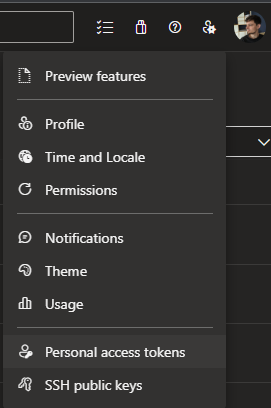
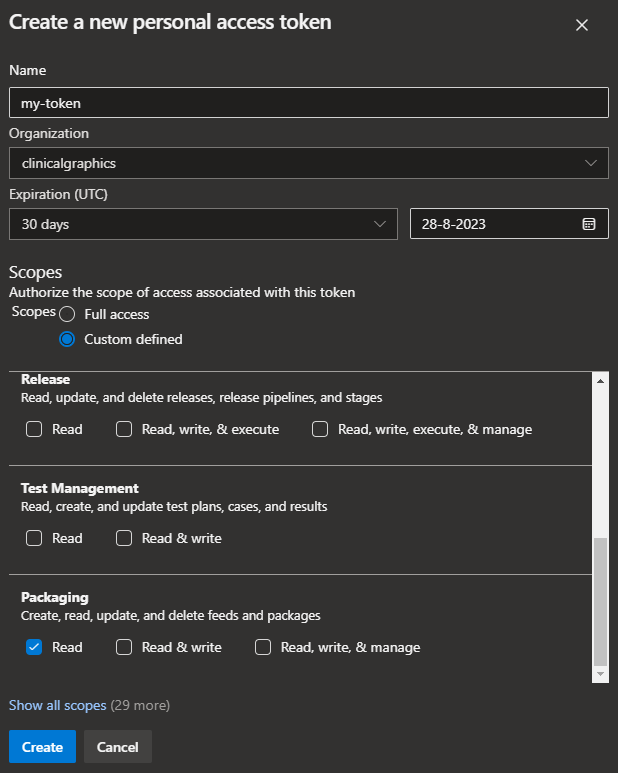
Let's begin by creating a Packaging (Read) token in Azure DevOps:
Make sure to check the Packaging (Read) permission, it's the only permission we need for this example.
Letting Poetry store it
In this case, we won't enter the token into the OS keyring manually. We'll let Poetry handle it. Let's review our pyproject.toml file:
[tool.poetry]
name = "my-project"
version = "1.0.0"
description = ""
authors = ["My Name <my-name@my-organization.com>"]

[[tool.poetry.source]]
name = "main"
url = "https://pkgs.dev.azure.com/my-organization/_packaging/main/pypi/simple/"
priority = "default"

[tool.poetry.dependencies]
python = "~3.9"

[build-system]
requires = ["poetry>=1.0.0"]
build-backend = "poetry.core.masonry.api"
Looks like our poetry source is named main, so let's run the appropriate command:
Poetry creates an entry in the OS keyring, and when you run poetry install it automatically authenticates using that credential. No need for keycmd here!
Piggybacking with keycmd
Next, we're going to piggyback off this credential with keycmd, to reuse it for npm and for docker compose. That way, we only have one credential to manage — which means one credential to update when it expires.
Look up the new credential in your OS keyring, and store the following configuration in a .keycmd file. Of course, review your OS keyring and adjust your configuration to match the credential name and username!
[keys]
PAT = { credential = "credential-name", username = "your-username" }
PAT_B64 = { credential = "credential-name", username = "your-username", b64 = true }
We are exposing the same credential twice:
- as the environment variable
PAT - again, with base64 encoding applied, as the environment variable
PAT_B64
This is important, because npm requires that we supply the token with base64 encoding, but other tools do not.
Or use an alias
The two entries above look up the same credential twice. An alias expresses the same thing with a single keyring lookup:
npm
For my npm project, I have an .npmrc file with the following contents:
registry=https://pkgs.dev.azure.com/my_organization/_packaging/main/npm/registry/
always-auth=true
//pkgs.dev.azure.com/my_organization/_packaging/main/npm/registry/:username=dev
//pkgs.dev.azure.com/my_organization/_packaging/main/npm/registry/:_password=${PAT_B64}
//pkgs.dev.azure.com/my_organization/_packaging/main/npm/registry/:email=email
//pkgs.dev.azure.com/my_organization/_packaging/main/npm/:username=dev
//pkgs.dev.azure.com/my_organization/_packaging/main/npm/:_password=${PAT_B64}
//pkgs.dev.azure.com/my_organization/_packaging/main/npm/:email=email
Now I can set up my node_modules just by calling:
🚀
Note
npm will complain if you make any calls such as npm run [...] without the environment variable set. 🙄 You can set them to the empty string to make npm shut up. I use export PAT_B64= (or setx PAT_B64= on Windows).
docker compose
Additionally, I also have a docker compose file in this project which is configured as follows:
When I call keycmd docker compose build these two variables are exposed by keycmd and subsequently they are available as docker compose build secrets. 👌